I already use Flowa
Go straight to the right screens.
The tutorials include shortcuts to your calendar, settings and management tools.
Flowa Help Centre
From your first service to revenue tracking, follow clear guidance to set up your workspace and save time every day.
I already use Flowa
The tutorials include shortcuts to your calendar, settings and management tools.
I’m exploring Flowa
Explore the features through real app screenshots before creating your workspace for free.
First steps
Follow this order when you first sign in. Each setting prepares the next and prevents duplicate data entry.
Enter the display name, contact details, logo, currency and general preferences.
Add your categories, then set the duration, price and any available options for each service.
Save their contact details and useful information: preferences, technical notes, cautions and permissions.
Choose the client, one or more services, the date and time. Flowa calculates the expected duration.
Choose the sending time and personalise the message. Reminders will then stay in sync with appointments automatically.
Add Flowa to your home screen, then allow notifications so you know when something needs your attention.
Install the app on your home screen for full-screen access and to enable notifications.
How it works
Open the topic you need and follow the steps in order. No technical setup is required.
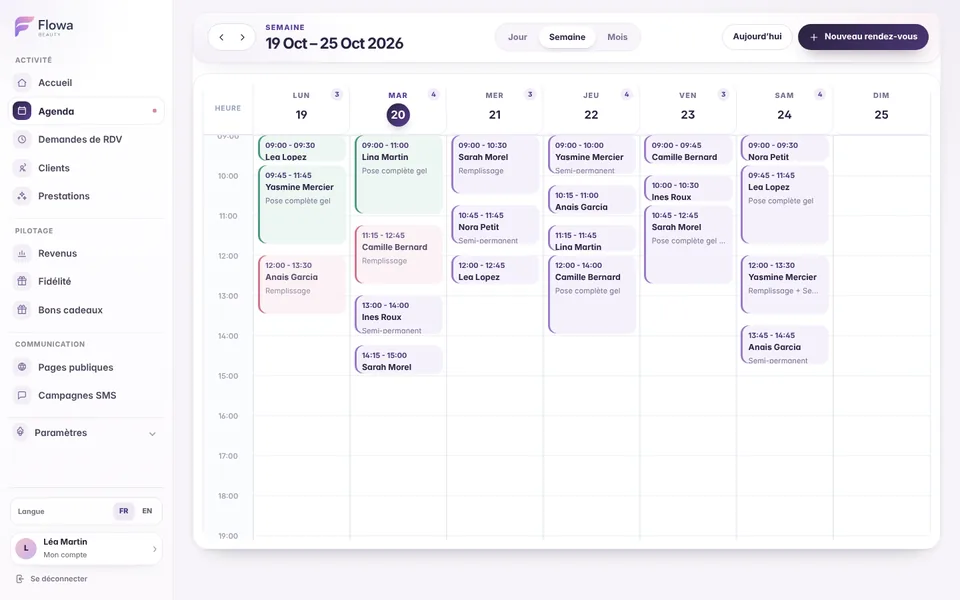
From the Calendar, use the + button and select the client, services, date and times.
Open the appointment to move it, change services, add a note or update its status.
At the end, choose Complete, check the amount received and enter the payment method.
If needed, apply a discount, redeem a gift voucher or manually add loyalty stamps before confirming.
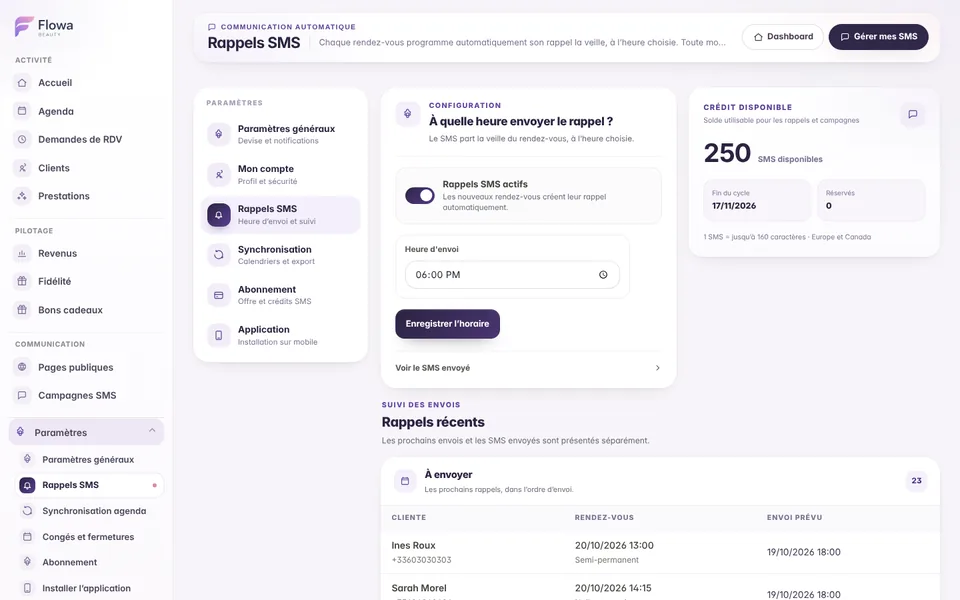
Open Settings, then SMS reminders, and enable automatic reminders.
Choose the sending time and write a message of up to 160 characters while checking the live preview.
Check that the client has a valid phone number and that reminders are enabled on their profile.
Review upcoming and sent reminders to track every status without refreshing the page manually.
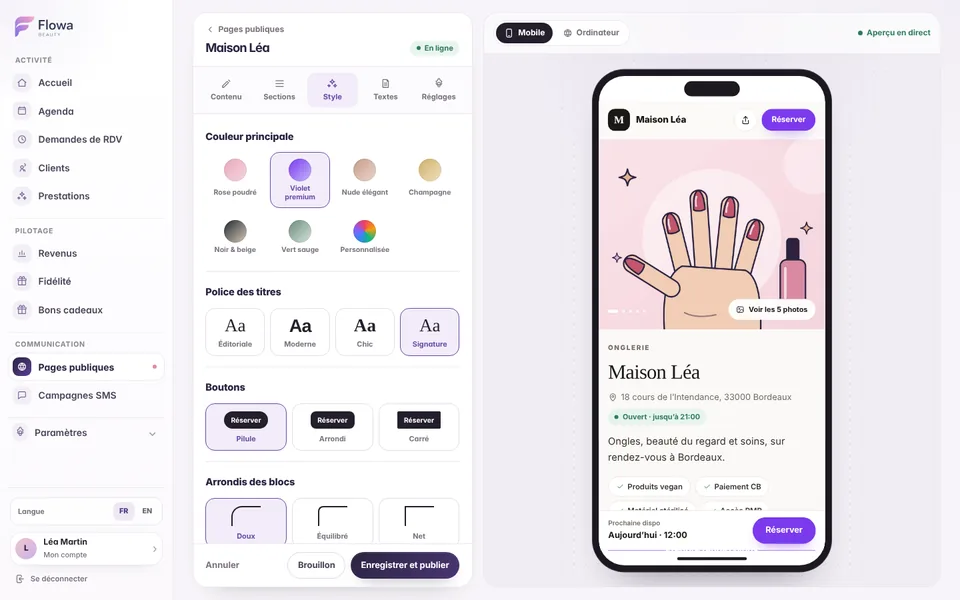
Create your showcase site under Public pages, add your information and enable online booking.
Set your opening hours, bookable time slots and holiday or closure dates separately.
Share the link. A new request appears on the dashboard and can trigger a push notification.
From Booking requests, review the day in the calendar, adjust the time slot, then approve or decline the request.
Choose email, SMS or both to notify the client. If deposits are enabled, you can request payment before final confirmation.
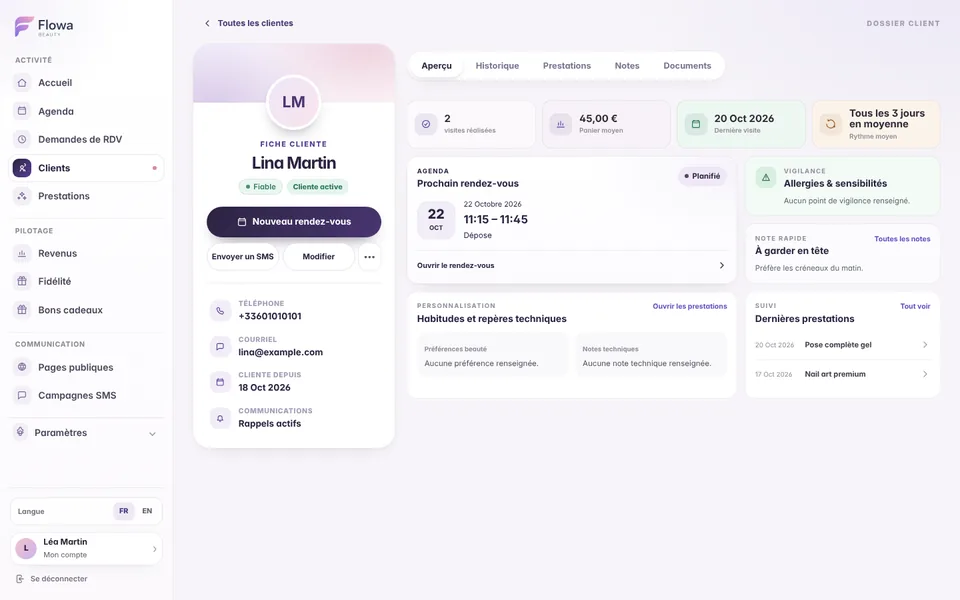
Create the profile with at least a name, then add useful contact details, preferences, technical notes and cautions.
Review appointment history, upcoming visits, visit frequency, average spend and permissions.
Set up loyalty, then add as many stamps as needed when completing an appointment or directly from the card.
For a gift voucher, record the buyer, optional recipient, amount and payment method, then select that voucher when it is redeemed.
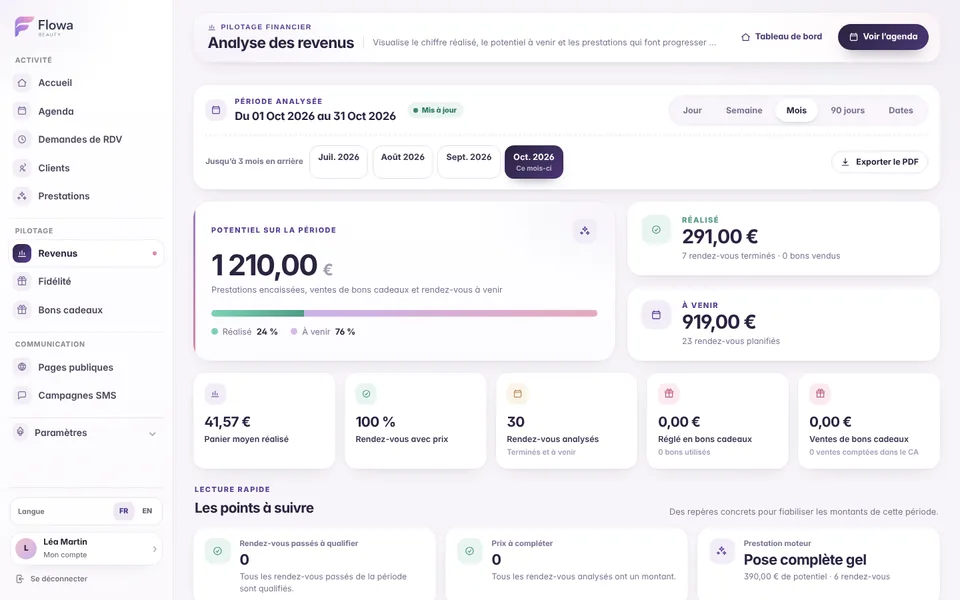
Complete each appointment with the amount actually received and the correct payment method.
Under Revenue, review a day, week or month and access up to the previous three months.
Use the Payment details needed list to correct incomplete payments quickly and open the relevant appointment.
Download the monthly PDF summary to keep a record of revenue and payment methods.
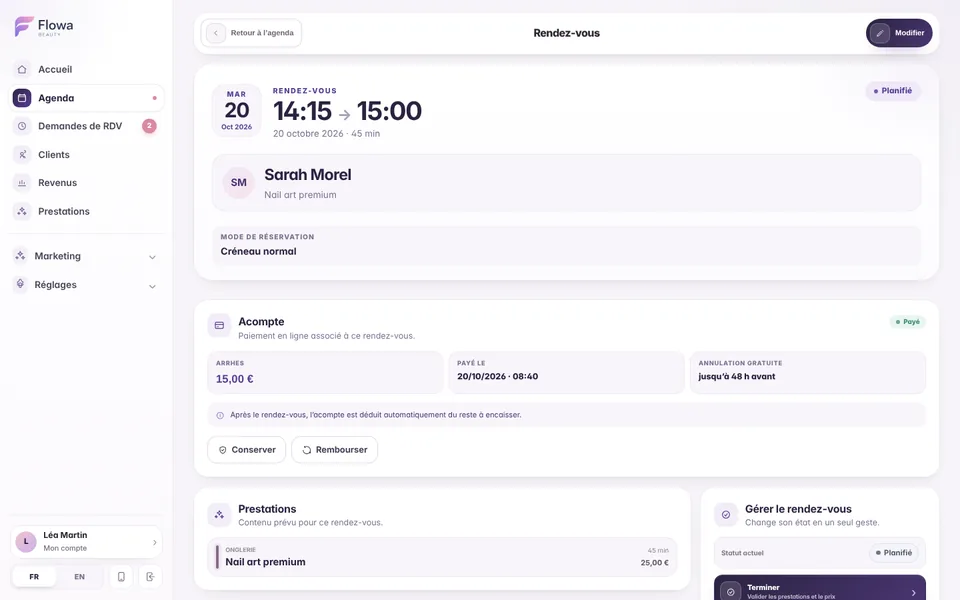
Under Settings, then Payments, connect your own Stripe account and enable deposits.
Request a deposit from a manually created appointment or while approving an online booking request.
Send the link by email or SMS, or copy it. The client pays by card on Stripe’s secure checkout page.
Track the payment from the appointment, then refund or retain the deposit as appropriate.
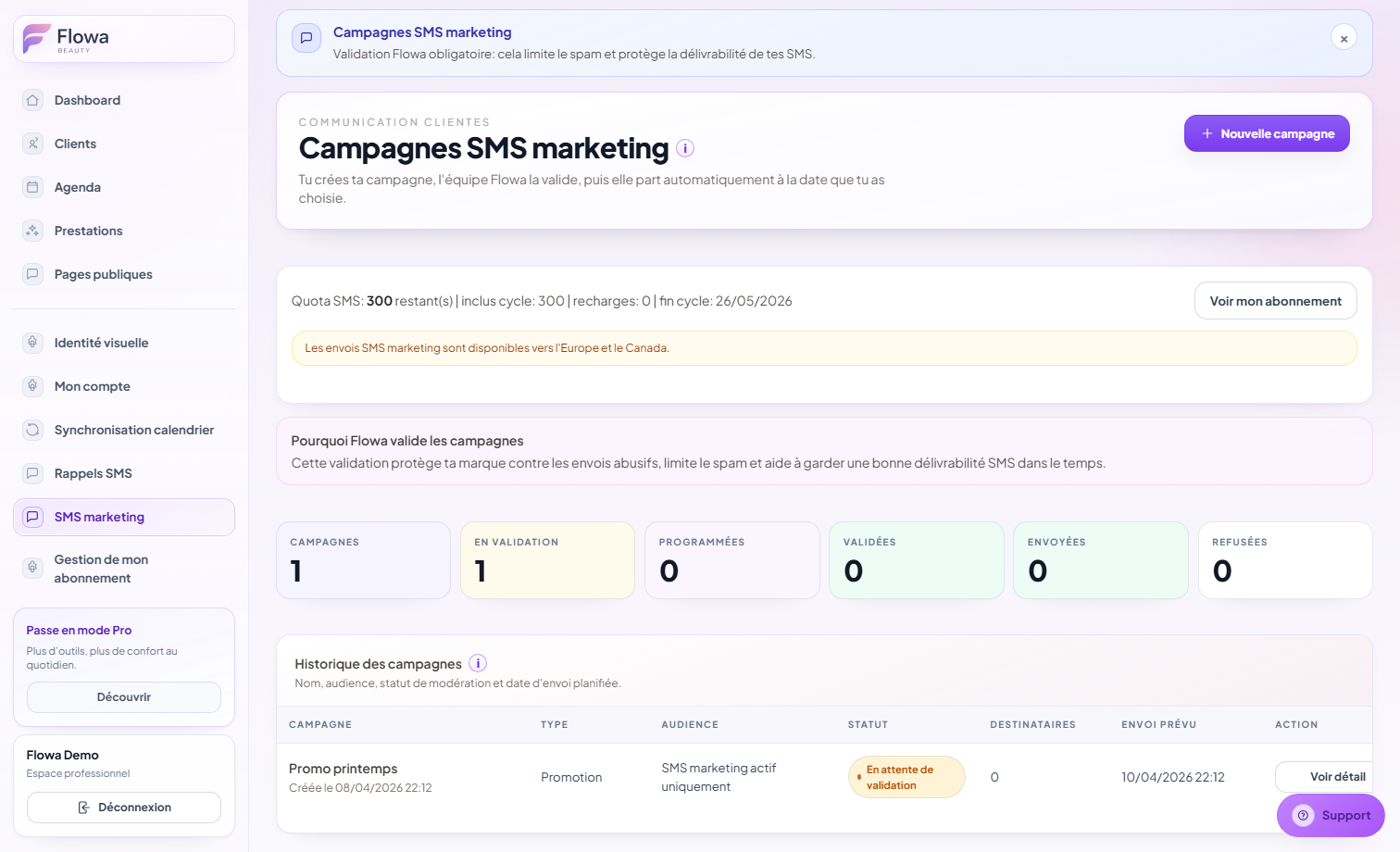
Open SMS Marketing, create a campaign and choose a simple audience or selected clients.
Write a message of up to 160 characters and check the preview and recipient count.
Submit the campaign for approval: the required SMS credits are then reserved from your balance.
Once approved and sent, open the campaign to review its details and delivery results.
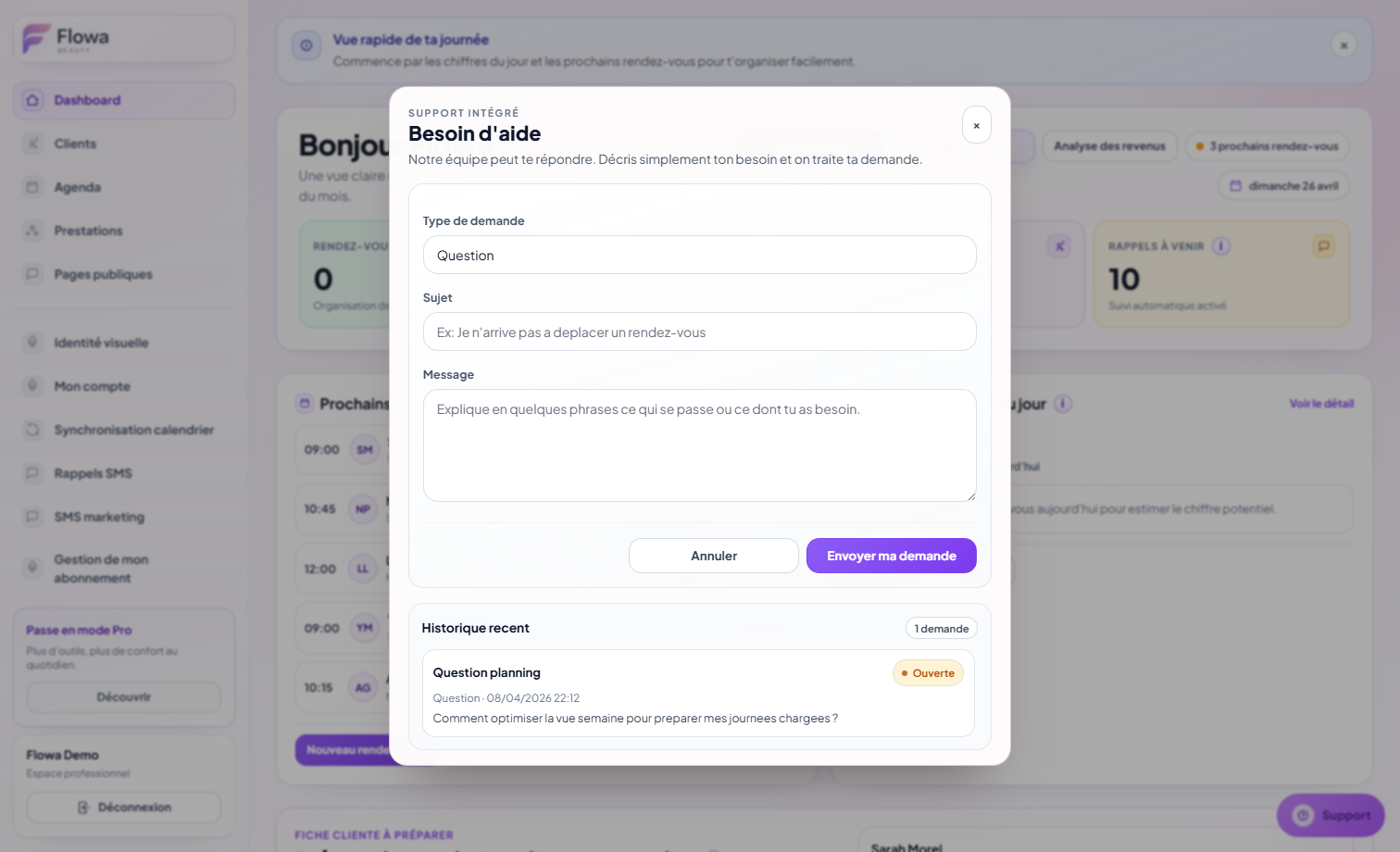
Install Flowa from Chrome on Android or from Safari’s Share menu on iPhone.
Open Settings, then Notifications, and authorise this device. Each browser or phone is registered separately.
You can also choose your default calendar view to open the day, week or month you prefer.
To show appointments in another calendar, open Calendar sync and subscribe to the link provided.
Feature guide
Each guide explains what the feature does, the information it uses and the actions available.
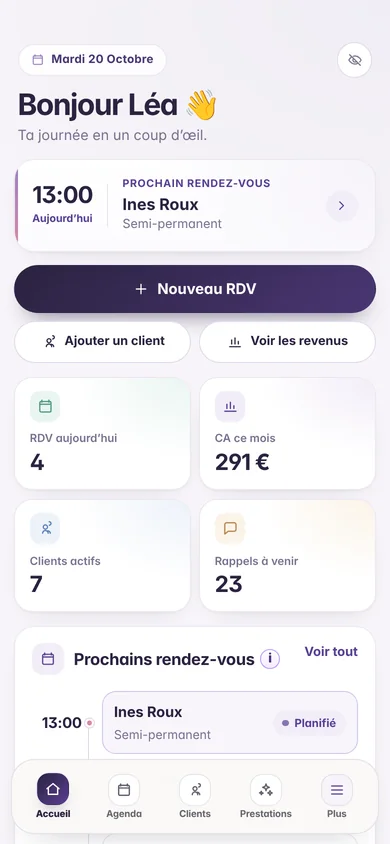
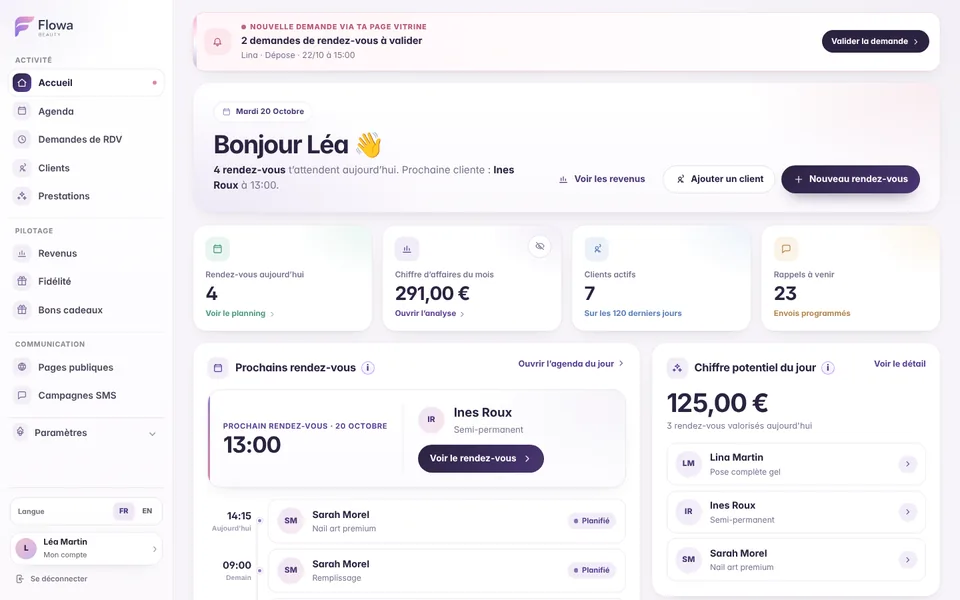
The dashboard brings together today’s appointments, your next client, upcoming reminders, active clients and useful figures. It also highlights anything that needs attention, so you do not have to search through several screens.
Open Flowa in the morning to see your first client, outstanding actions and the pace of the day at a glance.
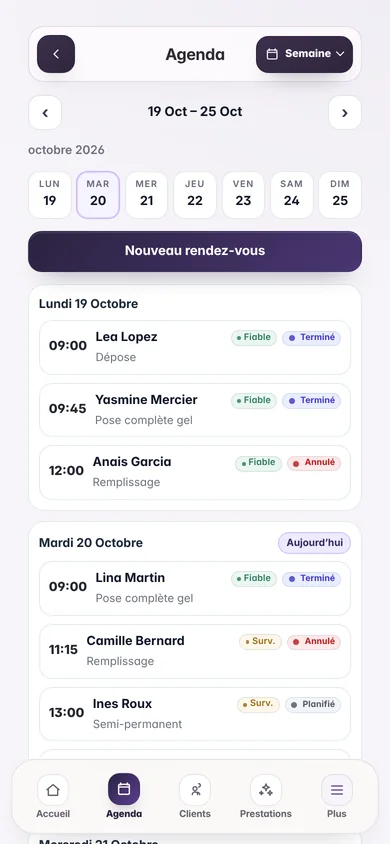
Each appointment brings together the client, services, options, times, internal notes and status. Day, week and month views let you move from immediate detail to a clear overview of your schedule.
A client adds an option or changes time: update the appointment, duration and amount from the same record.
Flowa organises services into categories so your menu stays easy to manage as it grows. Each service can have its own duration, indicative price, colour and options that change the time or price.
Create a full nail set, then add Nail Art or removal options that automatically adjust the planned duration and price.
Each client profile centralises contact details, quick notes, beauty preferences, cautions and technical notes. It connects this information to appointment history, upcoming visits, spend and loyalty.
Before a treatment, find the technique used, the client’s preferences and cautions without searching through conversations.
Choose the send time once. Flowa then creates the reminder from the appointment and schedules it for the previous day. A change of date, time, client or service updates the reminder automatically.
Move an appointment from Tuesday to Thursday and the Tuesday reminder is replaced by one for the new time slot.
Connect your Stripe account, set a fixed amount or a percentage, then request the deposit in one click from an appointment or when approving an online request. The client pays by card on a secure page and the slot is confirmed as soon as she pays.
A client books a two-hour full set: you approve her request with a €15 deposit. She pays from her phone and the appointment switches to “Deposit paid” in your calendar.
Create a message of up to 160 characters, preview the result and choose a straightforward audience: every eligible client or a precise selection. The campaign then goes through a review flow before sending.
A Friday slot becomes available: select relevant clients, review the message and submit the campaign.
Set the number of spaces on the card and the minimum spend required for a stamp. After a service, choose how many stamps to add; corrections remain possible and reward handover is tracked.
A client earns the final stamp: Flowa reminds you at their next visit, then you record that the reward was given.
A gift voucher can be purchased by a client or someone outside your client list, or offered by the business. Flowa stores its amount, buyer, optional recipient, payment method and available balance.
Someone buys a voucher as a gift: you record the sale, then the recipient selects that voucher when paying for their own appointment.
Financial insights are based on completed appointments and their final price. Compare recorded revenue with the value of upcoming appointments, then change period to review one day or a custom date range.
At month-end, identify your strongest services and any appointments that have not yet been closed correctly.
Create a mini-site to share on Instagram, in your bio or by message. Photo gallery, services, opening hours, address and next availability come together on an elegant page whose sections, colours, font and copy you choose with a live preview.
Add the link to your Instagram bio: prospects discover your work, choose one or more services and send their booking request.
The public schedule calculates availability from existing appointments, open days, working hours and the total duration of the selected services. Each request remains pending until you decide.
A request arrives from your page: review the day, adjust the time if needed, then approve it to create the appointment and notify the client.
Record one day or a closure period with its reason. Those dates become unavailable in the shared schedule while your usual rules continue to apply to other weeks.
Close one week in August and it disappears from the public calendar, with availability resuming automatically after your return.
Create as many competition or promotional pages as needed with a start date, deadline, terms and visual. Entries are grouped in Flowa and a prize draw can select the winner.
Launch an Instagram competition, share the public link and run the prize draw directly in Flowa.
Flowa provides a private iCalendar address in ICS format. Add it to a compatible tool such as Google Calendar, Apple Calendar or Outlook to view appointments from your Flowa calendar.
Add the Flowa feed to your phone calendar to view your professional schedule alongside your other calendars.
Flowa runs in the browser and can be installed as a Progressive Web App on the home screen. The interface adapts to mobile and notifications can be enabled per device according to your preferences.
Thirty minutes before an appointment, a notification opens its record so you can retrieve the useful details.
Settings bring together business details, currency, notification preferences and useful access options. The Subscription page shows included SMS credit, top-ups and the current plan status.
Before a campaign, check the available balance and top up SMS credit without leaving your management workspace.
Try a broader term or contact support for guidance.
Tell us your workspace name, the page concerned and what happened. A screenshot also helps us give you a more precise answer.
Contact support Reply sent directly by emailFrequently asked questions
Log in with the email address used when creating your account. If you have forgotten your password, use the reset link on the login page.
Check the client’s phone number and SMS preferences, then review recent reminders in your workspace. If the issue continues, contact us with the relevant appointment details.
The Subscription page shows your plan, SMS balance and available account management options.
Use the installation button shown on mobile. On iPhone, open Flowa in Safari, then choose Share and Add to Home Screen. You can then enable notifications from Settings.
An alert appears on the dashboard. The Booking requests page groups requests that are pending, approved, declined or expired.
Ready to make life easier?
Create your space in minutes, add your services and let Flowa send the reminders for you.
Nothing is charged when the trial ends.